See revenue alongside the cost of delivery
Review profitability by project or client for any period. Invoiced revenue sits next to the cost of logged hours at each member's rate.
See invoiced revenue against the cost of logged hours for every project and client, with budgets and the approved work you have not billed yet.
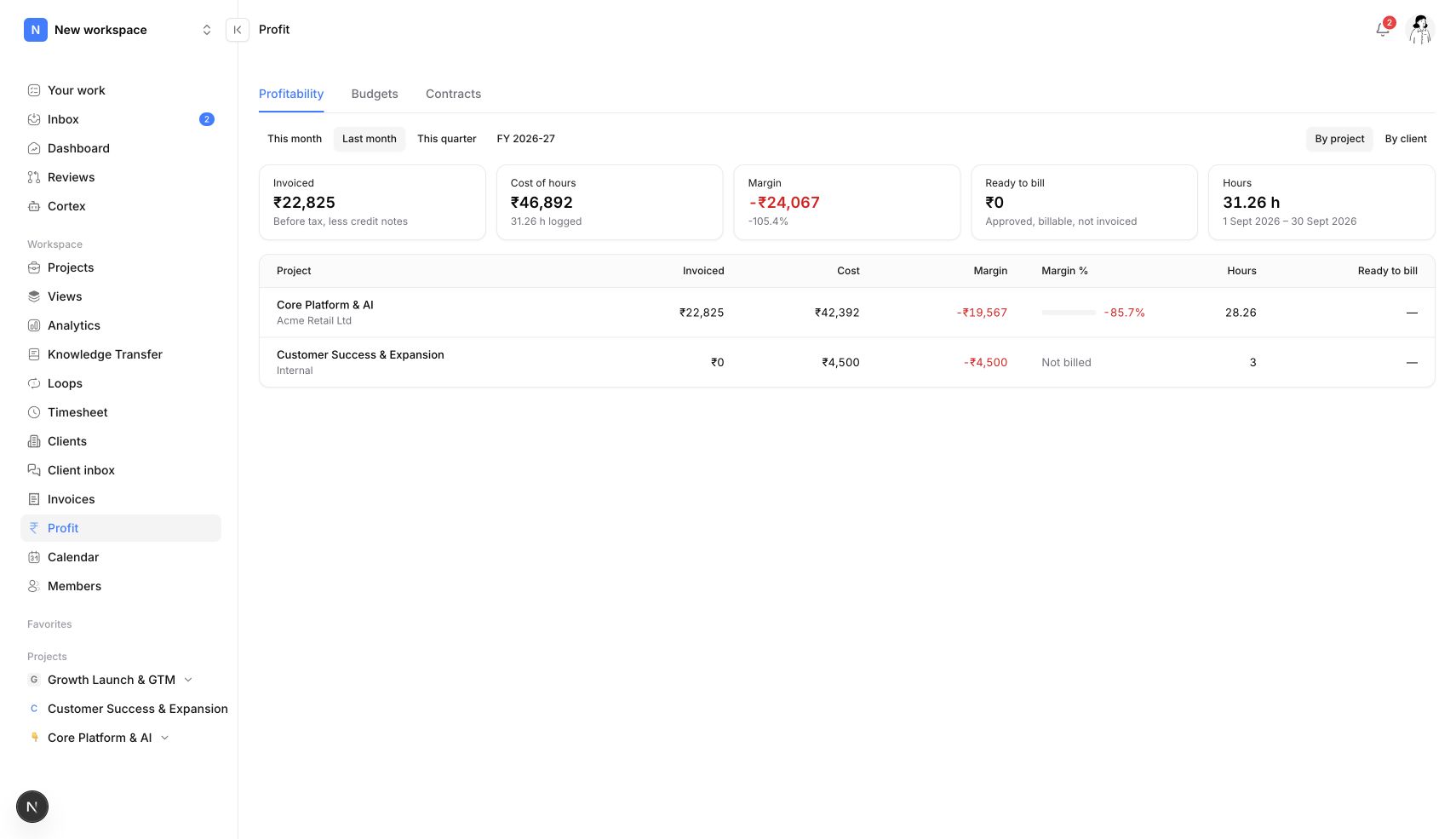
Review profitability by project or client for any period. Invoiced revenue sits next to the cost of logged hours at each member's rate.
Set project budgets and review where work stands against them. Accurate time entries and cost rates make the report more useful.

The contract portfolio shows unbilled work outside locked engagements and the deals that need attention, for fixed-bid, time-and-materials and retainer contracts.
Turn the signed SOW into a locked baseline. Scope Guard flags work outside it, and the client approves the price before your team starts.
Profitability capabilities
You find a losing project while there is still time to change the price, the scope or the team.
Budget overruns show up as they happen, not when the final invoice comes up short.
Work outside the agreement shows up as an amount, ready to bill or to discuss with the client.
How it works

Record the effort against the project where the work happened.
Configure member cost rates to provide delivery cost context.
Review revenue and budgets alongside recorded project costs.
Inspect unbilled work in the contract portfolio with the client agreement.
Compare the revenue and delivery costs recorded against projects and clients.
Choose a period so the report answers the delivery question you are reviewing.
Invoiced revenue and hours valued at configured cost rates form the report’s financial basis.
Set the project budget to give recorded delivery costs a reference point.
Inspect budget progress during delivery rather than waiting until the project closes.
Cost figures depend on recorded time and member cost rates, including non-billable effort.
Logged hours multiplied by each member's cost rate. Keep timesheets and rates current and the figures stay accurate.
No. Profitability counts invoiced revenue. Invoice status shows what has actually been paid.
Yes. Contract reporting shows the hours logged outside the agreement and their value, so you can bill them or discuss them with the client.
Connect the request, the agreement and the delivery.
Lock the SOW as a scope baseline, flag work outside it with Scope Guard and send priced change requests for client approval in Neevio.
Explore scope management →Track task time, review weekly timesheets and connect billable hours to invoicing and project costs in Neevio.
Explore time tracking →Create GST invoices from tracked hours in Neevio, with UPI details, Razorpay payments, reminders and a Tally export, connected to the project.
Explore invoicing →Organize tasks, priorities, dependencies and project discussions in Neevio. Use list, board and timeline views to keep delivery moving.
Explore task management →Plan projects with epics, sprints, estimates and Gantt timelines in Neevio. Connect delivery plans to task ownership and dependencies.
Explore project planning →Review incoming project requests in Neevio. Accept, decline or mark duplicates before requests join your team’s planned work.
Explore intake →Give clients one Neevio portal for progress, files, messages, change approvals and invoices they can pay online. Email-link sign-in.
Explore client portal →Use Neevio Loops for scheduled project summaries and event-based task updates. Keep recurring AI work connected to project context.
Explore ai workflows →We use optional Google Analytics cookies to understand how you use Neevio. You can accept or reject these cookies and use the website either way. Your choice is saved for 180 days. Change it anytime in Cookie settings in the footer.