
Keep the client and the work together
Keep client contacts, billing details and engagements together. Invoices pull in tracked hours at the rates set for each client.
Turn approved hours into GST invoices with UPI details. Share them in the client portal, collect online and export to Tally.
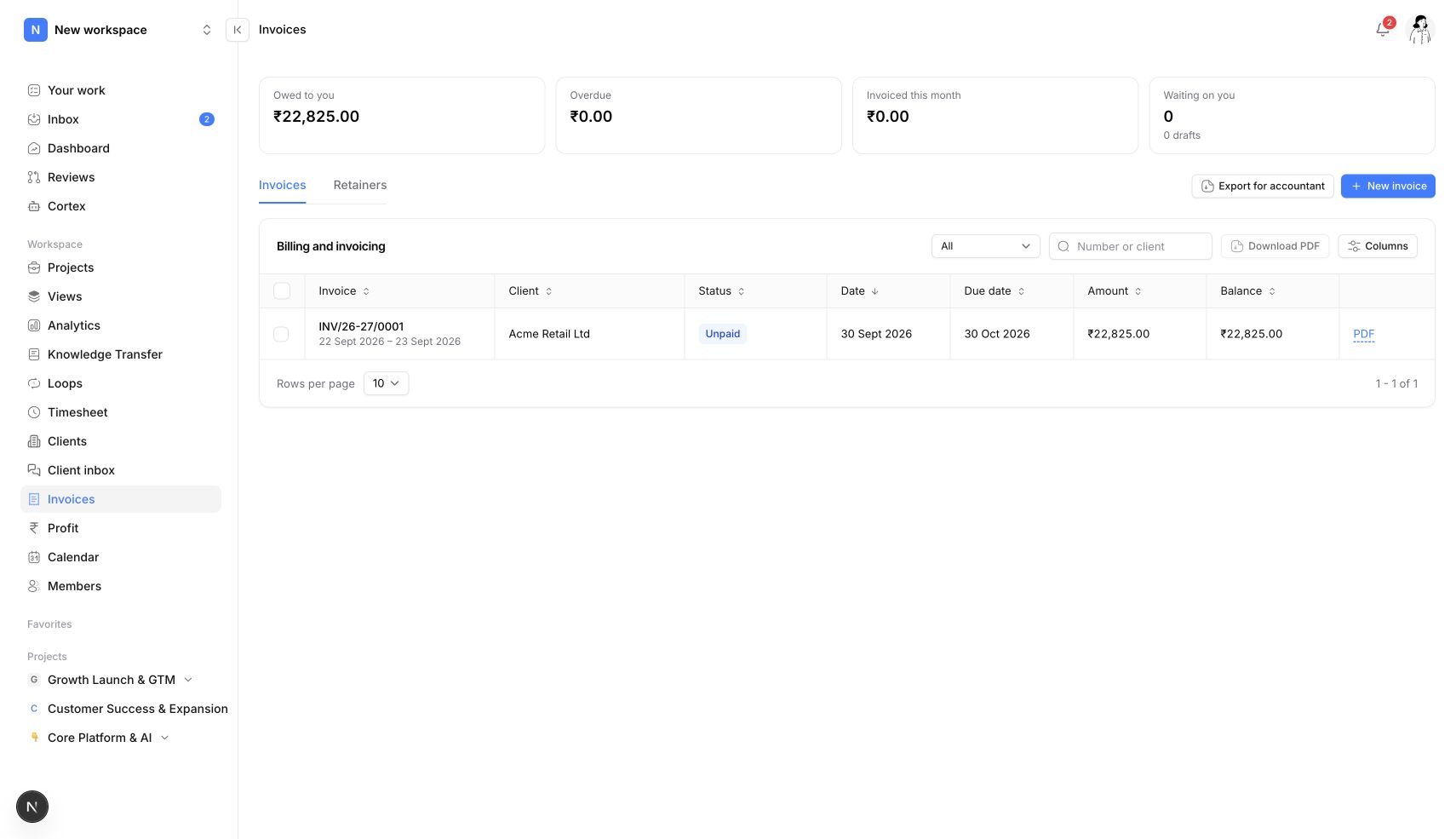
Keep client contacts, billing details and engagements together. Invoices pull in tracked hours at the rates set for each client.
Review lines, GST and totals in the invoice editor. CGST and SGST, or IGST, follow the supply type, and the PDF carries your GSTIN, SAC code and UPI details.
See what is due and overdue, send reminders and export invoices, payments and credit notes for Tally or Excel. Connect Razorpay so clients can pay by UPI, card or net banking.

Start a timer on the task or fill in the weekly timesheet. Reviewed hours flow into client invoices and project costs.
Invoicing capabilities
No copying hours from a spreadsheet into an invoice template, and no billing a client at the wrong rate.
The invoice is right the first time, and the client can pay straight from the PDF or the portal.
Cash comes in sooner, and the month-end handover to your accountant is an export instead of a project.
How it works
Choose the client and engagement to keep billing connected to the work.
Add the approved hours as invoice lines at the client's billing rate.
Check GST and issue the invoice with a PDF and UPI details in the client portal.
Collect and reconcile with Razorpay, reminders and a Tally export.
Select the client and billing contact for the invoice you are preparing.
Keep the invoice associated with the engagement behind the delivered work.
Review the relevant hours and rates before adding them to invoice lines.
Prepare a draft, check its details and issue it when it is ready to share.
Generate a PDF so the client can keep a copy of the issued invoice.
Give clients access to their invoice through the separate client portal.
Yes. The invoice editor calculates CGST and SGST for intra-state supply and IGST for inter-state or export supply. The PDF shows your GSTIN, the SAC code and your UPI and bank details.
Yes, once you connect Razorpay in workspace settings. Clients can pay by UPI, card or net banking. You can also record bank transfer, cheque or cash payments yourself.
Yes. Choose the reviewed hours for a client and they become invoice lines at that client's billing rate.
No. Neevio creates the invoices and exports invoices, payments and credit notes for Tally or Excel. Your books and filings stay where they are.
Yes. Every issued invoice has a PDF, and clients can download it from their portal.
Connect the request, the agreement and the delivery.
Track task time, review weekly timesheets and connect billable hours to invoicing and project costs in Neevio.
Explore time tracking →Give clients one Neevio portal for progress, files, messages, change approvals and invoices they can pay online. Email-link sign-in.
Explore client portal →See project revenue, the cost of logged hours, budgets and unbilled work in Neevio, and fix a losing project while it is still running.
Explore profitability →Organize tasks, priorities, dependencies and project discussions in Neevio. Use list, board and timeline views to keep delivery moving.
Explore task management →Plan projects with epics, sprints, estimates and Gantt timelines in Neevio. Connect delivery plans to task ownership and dependencies.
Explore project planning →Review incoming project requests in Neevio. Accept, decline or mark duplicates before requests join your team’s planned work.
Explore intake →Lock the SOW as a scope baseline, flag work outside it with Scope Guard and send priced change requests for client approval in Neevio.
Explore scope management →Use Neevio Loops for scheduled project summaries and event-based task updates. Keep recurring AI work connected to project context.
Explore ai workflows →We use optional Google Analytics cookies to understand how you use Neevio. You can accept or reject these cookies and use the website either way. Your choice is saved for 180 days. Change it anytime in Cookie settings in the footer.